Purchase Order
A purchase order is a formal document that you send to your suppliers outlining your desired purchase, the quantity, and the agreed-upon pricing for that specific goods or service.
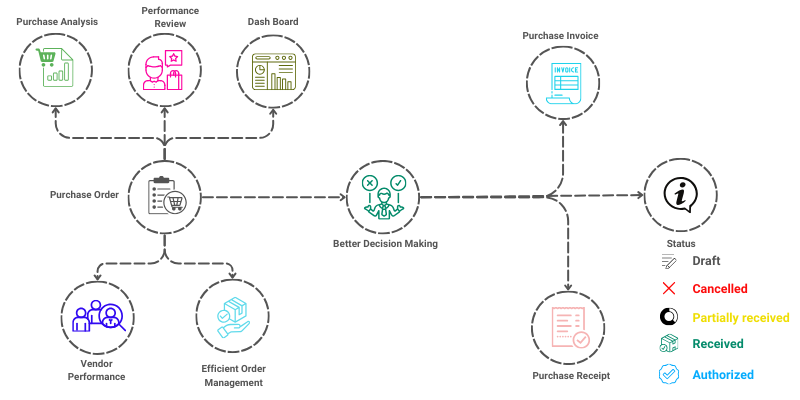
To access the Purchase Order, go to: > Home > Application > Procurement > Operations > Purchase Order
How can I get Benefit ?
- Establishes a Binding Agreement : Once accepted by the supplier, the PO forms a legally binding contract between the buyer and the supplier. This helps to ensure that the supplier will fulfill the order as specified in the terms of the PO.
- Clarity and Specificity: The PO clearly outlines the goods or services required, including quantities, specifications, delivery dates, and payment terms. This reduces misunderstandings between the buyer and the seller.
- Budget Control: Organizations often use purchase orders to manage and track their expenses. By issuing a PO, companies can monitor spending against their budgets, ensuring financial control..
- Record-Keeping: Purchase orders provide a paper trail that helps in auditing and tracking the purchasing process. It serves as a reference for both parties to verify what was ordered and delivered.
- Inventory Management: POs help businesses track their inventory and ensure that they have enough supplies or products to meet demand without over-purchasing.
Properties
Primary Properties
| Property | Description |
|---|---|
| Order Date | Purchase Order Date default Business Date displayed |
| Order No | Purcahse Order No generated by default |
| Vendor | You Can Select Vendor from List or Add New One |
| Delivery Location | You Can Select Delivery Locaton from List |
| Reference No | Enter any Reference No if required |
| Delivery Date | Enter Expected Delivery Date for the Purchase Order |
| Purchaser | You Can Select Purchaser from List or Add New One |
| Payment Term | You Can Select Payment Term from List or Add New one |
| Notes | Can Enter information releated to Purchase Order |
| Terms & Conditions | Can enter Terms & Conditions for this Purchase Order |
Item Properties
| Property | Description |
|---|---|
| Product | Here, you can select Product from Prodcut List |
| Status | Select Exclusive Or Inclusive Tax Variation |
| Quantity | Enter Item Quantity required |
| Rate | Enter Item Rate |
Status of a Purchase Order
- Draft : This status indicates, that a purchase order has been created and is yet to be Authorised.
- Authorised : This status indicates, that a purchase order has been created and is Authorised.
- Partially Received : This status indicates that portion of the list of items in the purchase order has been received from vendor.
- Received : This indicates that all the items in your PO has been received by organization from vendor with Exact Quantity and Price.
- Received (Mismatch) : This indicates that all the items in your PO has been received by organization from vendor with difference Quanity or Price.
- Cancelled : This indicates that your purchase order has been cancelled.
Create New Purchase Order
- Go to the Purchase Orders list, click on
Add New - You will be navigated to a new window for entering the details for the new purchase order to be created.
Primary Purchase Order Information

- you can observe
Order Date&Order Nois generated by default. - Under the Vendor name field, you can either pick the vendors from the list you have already created or you can add a new vendor by clicking on the + New vendor option.
- Select Delivery Location.
- Enter if you have any Reference No.
- you can set the Expected Delivery date by which the Order should be delivered by the vendor to the you.
- Select Purchaser.
- Select Payment Term.
- Click on
Save
Item Information
- Under the Product field, you can pick the Product from the list you have already created.
- Choose Tax Exclusive or Inclusive.
- Enter Quantity and Rate.
- Click on
Applyto add item to Purchase Order.
Import Items from Excel
- You Can import Items from Excel file which is in specific Format.
- To get the Formated Excel file Click on
Export Excel Template, Sample Excel will be downloaded. - After updating the Excel File , to Import Items Click on
Import From Excel. - Select Excel file which created with the item details.
- All Item will be imported from Excel File.
Additional Information
- Tou can enter Round Off Amount to make round the total PO Amount.
- You can record Notes purchase Terms & Conditions for the purchase order.
- Alter Fill up the all necessary details click on
Save as Draftto Save the Purchase Order.
Edit Purchase Order
- Go to the Purchase Orders list, Select the preferred PO and click on
Edit - You will be directed to a edit purchase order page.
- Update all the necessary changes.
- Click the
Save as DraftorSave as Authorisedbutton to update your changes.
info
Only Purchase invoices in Draft status can be edited.
Cancel Purchase Order
- Go to the Purchase Orders list, Select the preferred PO and click on
Edit - You will be directed to a edit purchase order page.
- Click the
Cancelbutton to Cancel your changes.
info
Only Purchase invoices in Draft status can be cancelled.