Product
Products are either Goods or Service, that you purchase from your vendors and sell to your customers.
ValueBot offers a streamlined way to manage both Goods and Services.
For goods, you can keep track of inventory levels automatically. When you create a purchase request, the stock levels for those goods increase. Conversely, when you sell the items, the stock decreases, ensuring accurate inventory management.
For services, you can easily add them and track, enhancing overall operational efficiency. This feature makes it easy to monitor and maintain inventory, improving both purchasing and sales processes.
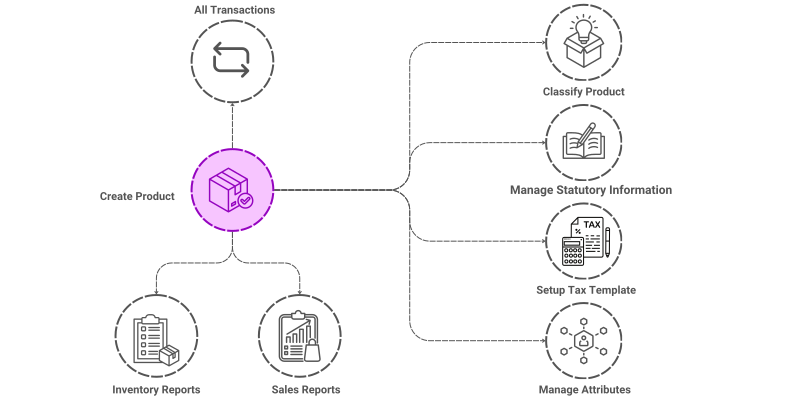

To access the Product list, go to: > Home > Application > Inventory > Setup > Product
How can I get Benefit ?
- Improved Data Accuracy and Consistency : Centralized product information reduces errors and discrepancies across departments like sales, inventory, and finance. Ensures that all users are working with the most up-to-date product data.
- Streamlined Sales and Inventory Processes : Facilitates quick and accurate sales order processing by providing essential product details, pricing, and stock availability.
- Enhanced Reporting and Analytics : Facilitates detailed reporting on sales performance, inventory turnover, stock levels, and pricing trends. Allows for analysis of product profitability, category performance, and sales patterns.
Properties
| Property | Description |
|---|---|
| Product Code | User can enter manual code, if leave blank sytem will assign auto code to the Product |
| Product Type | you can set the type of the product like Goods Or Service |
| Product Name | Here, you can enter the name of the Product |
| Group | you can select the Group from list or add new Group |
| Category | Here,You can choose the Category that the product falls under |
| Tax Template | Here,You can choose the Tax Template that the product falls under |
| HSN Code | you can mention the HSN Code |
| Tax Type | you can set the Tax Type of the Product |
| Manner | you can set the Manner of the Product |
| Quantity Decimal | you can set the Quantity Allowed |
| Attributes | if the product is Common Code Unit, You can set the all Attribute value information here |
| Other Language Name | Here, you can enter the name of the Product in different languages |
| Touch Pos | You can set the Touch pos |
| Product Selling Type | You can set the selling type |
| Promotion | You can alot a promotion to the product |
| Open Rate | You can set the Open rate to the product |
Create a Product
- Go to the Product list, click on
Add New - Enter Product Code
- Select Product type
- Enter Product Name
- Select Group from list or click on + to add new Group
- Select Category from list or click on + to add new Category
- Select TaxTemplate from list or click on + to add new Tax Template
- Select Tax Type
- Select the Open Rate option if applicable
- Select Product Manner
- if Product Manner is Common Code Unit,
- Select all Attributes values from list
- Select Quantity decimal Allowed
- You can select yes if the touch pos required
- You can apt New Batch code option if necessary
- Select the Product Selling Type from the list
- Select the Promotion from the list if you want to apply
- Click on
Save

Edit a Product
- Go to the Product list
- Locate the Product, Click on the Pencil icon to open whose details you want to Edit
- Make the necessary changes
- Click on
Save

Delete a Product
- Go to the Product list
- Locate the Product, Click on the Delete icon to open whose details you want to Delete
- Click on
Delete

A Product that has been associated with any transactions cannot be deleted.