Category
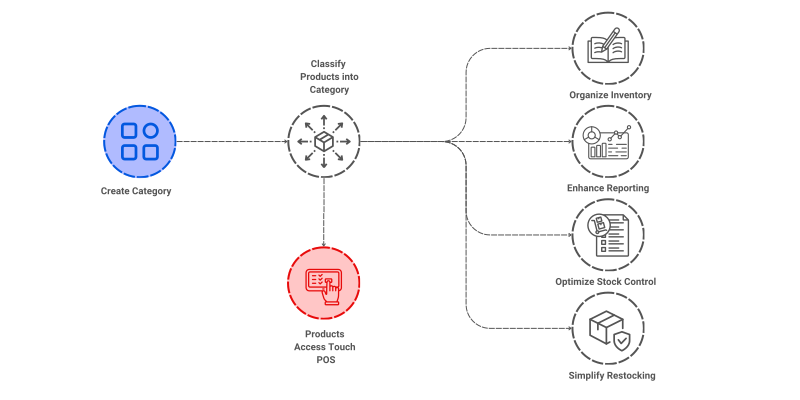
As your business expands, you may find yourself with an increasing number of products in your inventory, making it more difficult to keep track of them. With ValueBot, you have the ability to sort your products into various Categories. This organised system allows for easier access to your inventory, leading to improved management of your stock.
To access the Category list, go to: > Home > Application > Inventory > Setup > Category
How can I get Benefit ?
ValueBot offers a useful feature for managing inventory through Grouping.
- Organize Inventory : Categorising items allows for easier management and quick access, especially as the number of items grows.
- Enhance Reporting: Categories allow for better tracking of inventory levels, sales trends, and stock movement, making it easier to generate reports.
- Optimize Stock Control: By classifying items, you can more easily monitor stock levels and reorder products before they run out.
- Simplify Restocking: With categorized inventory, you can quickly identify which items need replenishing, helping to maintain optimal stock levels.
Properties
| Property | Description |
|---|---|
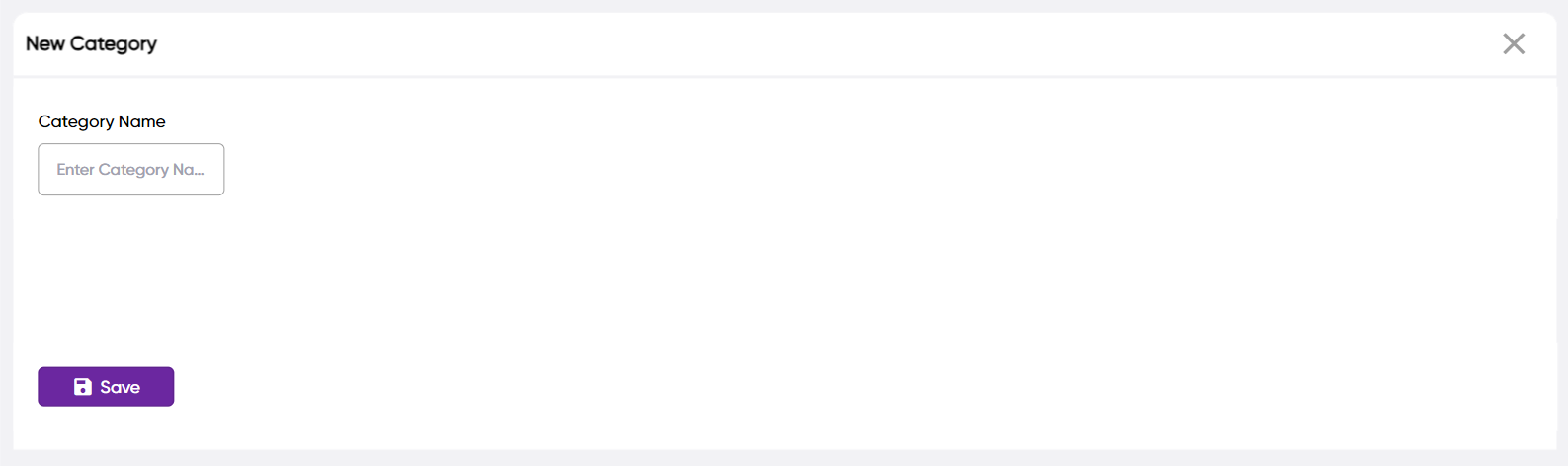
| Category Name | Here, you can enter the name of the Category |
Create a Category
- Go to the Category list, click on
Add New - Enter Group Name
- Click on
Save
tip
You can assign a Category to an individual Product
Edit a Category
- Go to the Category list
- Locate the Category, Click on the Pencil icon to open whose details you want to Edit
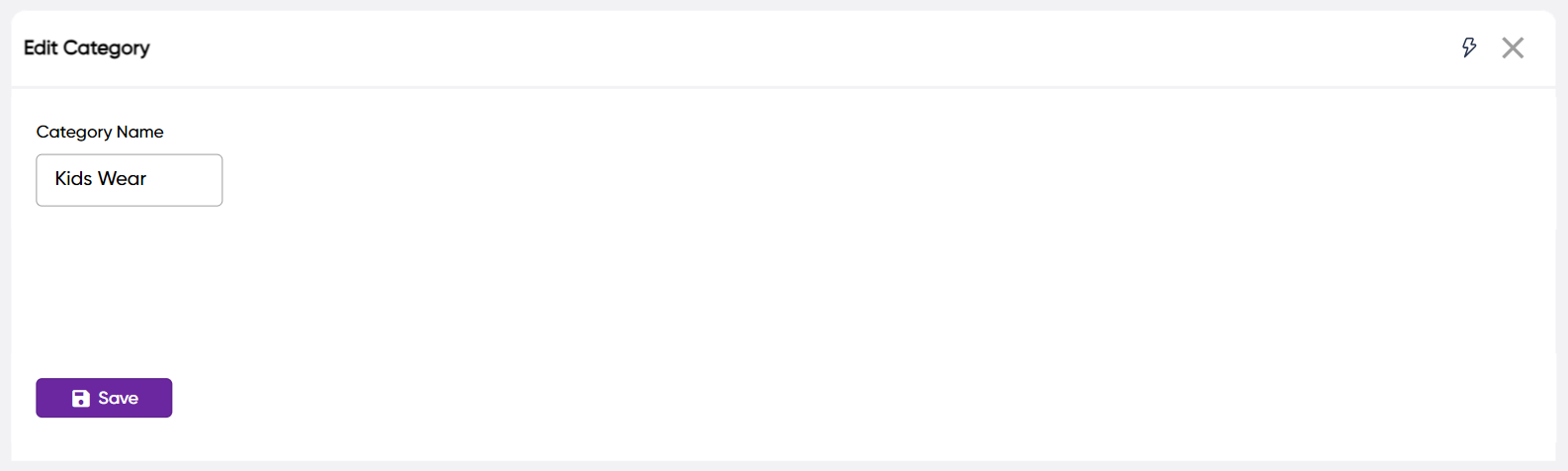
- Make the necessary changes
- Click on
Save
Delete a Category
- Go to the Category list
- Locate the Category, Click on the Trans icon to open whose details you want to Delete
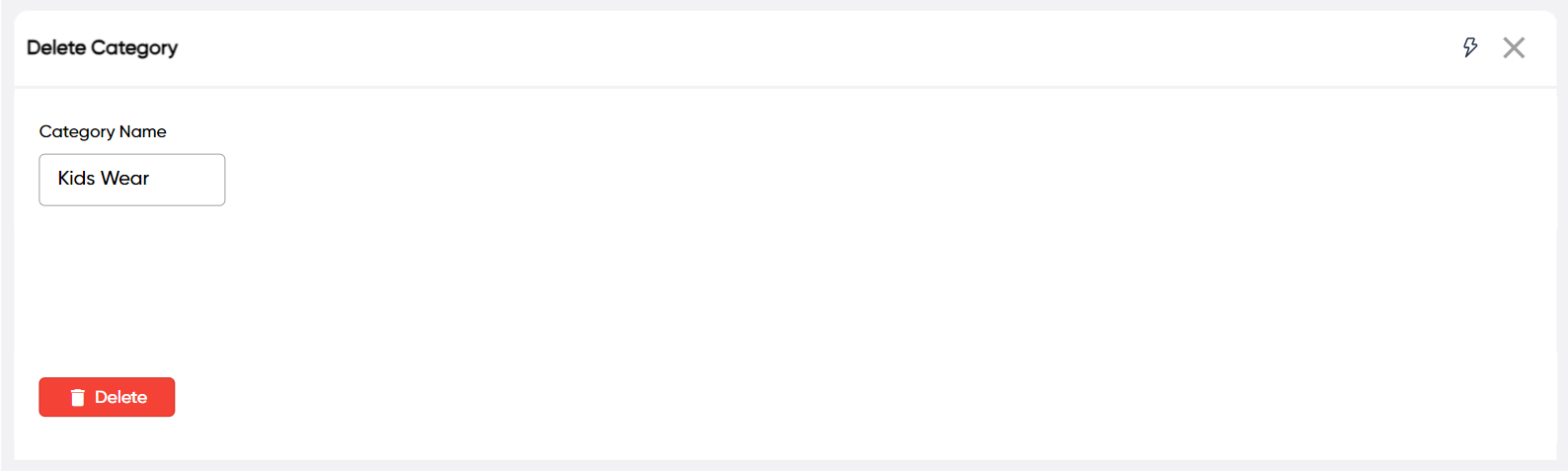
- Click on
Delete
warning
A Category that has been associated with a Product cannot be deleted. Still You want to remove the Category, delete all Products which are accociated with that Category.